How to Switch CRM Without Losing Data (Step-by-Step)
Outgrown your CRM, or paying too much for it? Here is a step-by-step plan for switching CRM without losing customers, history or your team’s goodwill.
Switching CRM sounds like a big job. For most sole traders and SMEs, it is an afternoon’s work if you plan it properly. The hard part is not the technology. It is deciding what to bring with you and getting everyone using the new system.
Good reasons to switch CRM
- The price keeps going up, or you pay for features you never use
- It is too complicated, so nobody updates it
- It does not work well on a phone
- Your team has grown and the per-user cost has become painful
- You have outgrown a spreadsheet pretending to be a CRM
If the problem is that nobody uses your current CRM, a simpler one usually fixes it. If the problem is missing features, check carefully that the new one really has them.
Step 1: decide what to bring across
Not everything needs moving. Most businesses need:
- Companies: name, address, phone, website
- Contacts: name, job title, email, phone, and which company they belong to
- Key custom details: renewal dates, account numbers, product types
- Open deals and upcoming follow-ups
Years of old email logs and closed deals are often better left in an archive export than cluttering your new system.
Step 2: export your data
Almost every CRM, including HubSpot, Pipedrive, Zoho, Capsule and Salesforce, can export contacts and companies as a CSV file, usually from an Export option on the contacts list or in settings. Export people with their company name included. Keep a full export of everything as a backup, even what you are not moving.
Step 3: clean it before you import
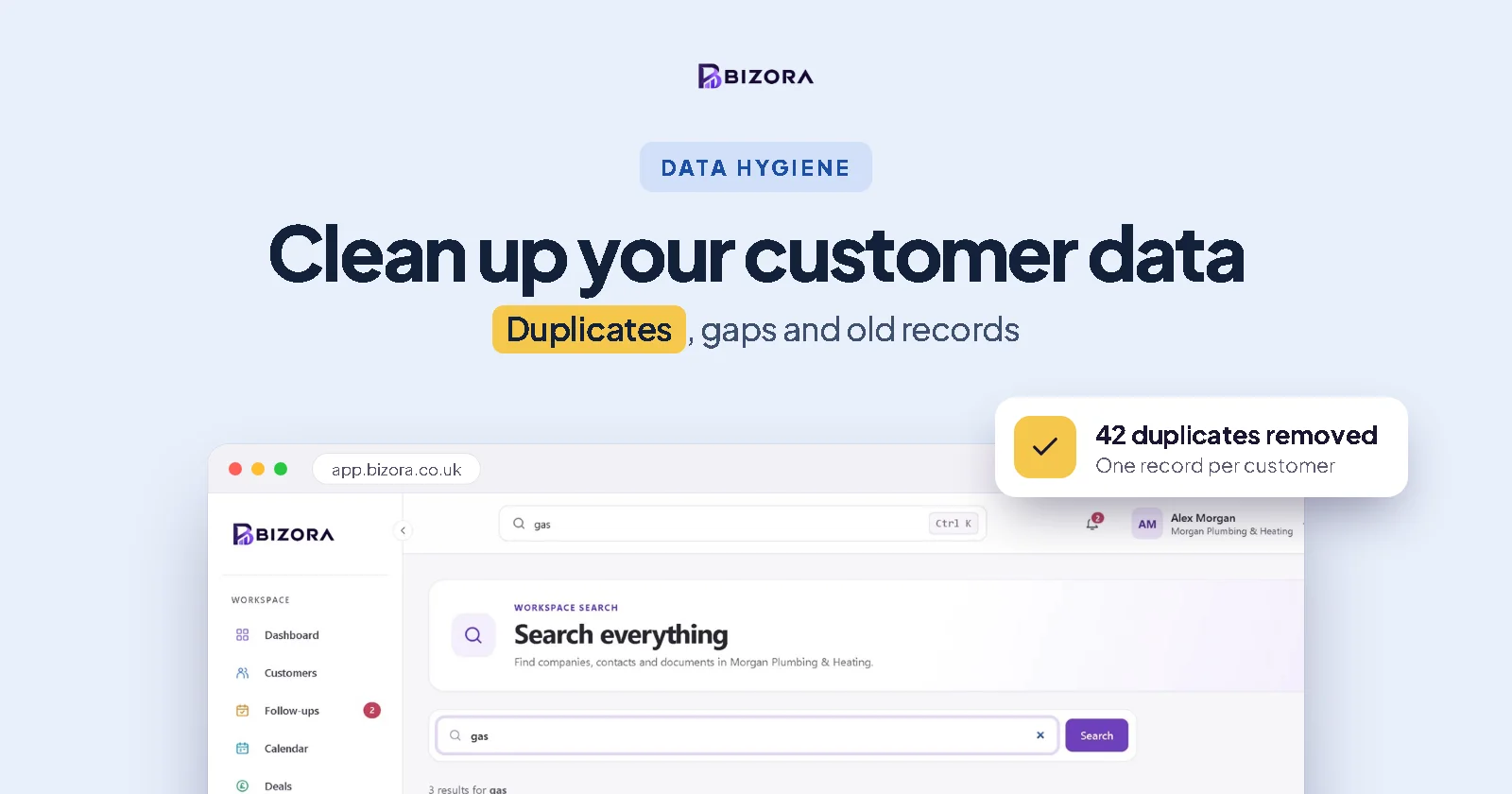
Moving CRM is the best chance you will get to tidy up. Remove duplicates, delete contacts you no longer need and fix obvious errors in the spreadsheet before you import. See our guide to cleaning up customer data.
Step 4: import into the new CRM
Do a small test import of 20 or 30 rows first. Check the columns landed in the right fields, contacts are linked to the right companies and nothing odd has happened to names or phone numbers. Then import the rest.
Step 5: add what the importer cannot
Most importers handle companies and contacts. Open deals, upcoming follow-ups and important files usually need adding by hand. For a small business, that is often only a few dozen items, and doing it by hand is a good way to review what is genuinely still live.
Step 6: bring your team across
- Pick a switch-over date and stop adding to the old system after it.
- Show everyone the basics in a 20-minute session: finding a customer, logging a call, setting a follow-up.
- Make the new CRM the only place for customer information from day one.
- Keep the old system read-only for a month or two, then close it.
Step 7: check, then cancel
Before you cancel the old subscription, check the record counts match, spot-check a few customers and make sure you have a full export saved somewhere safe.
Switching to Bizora
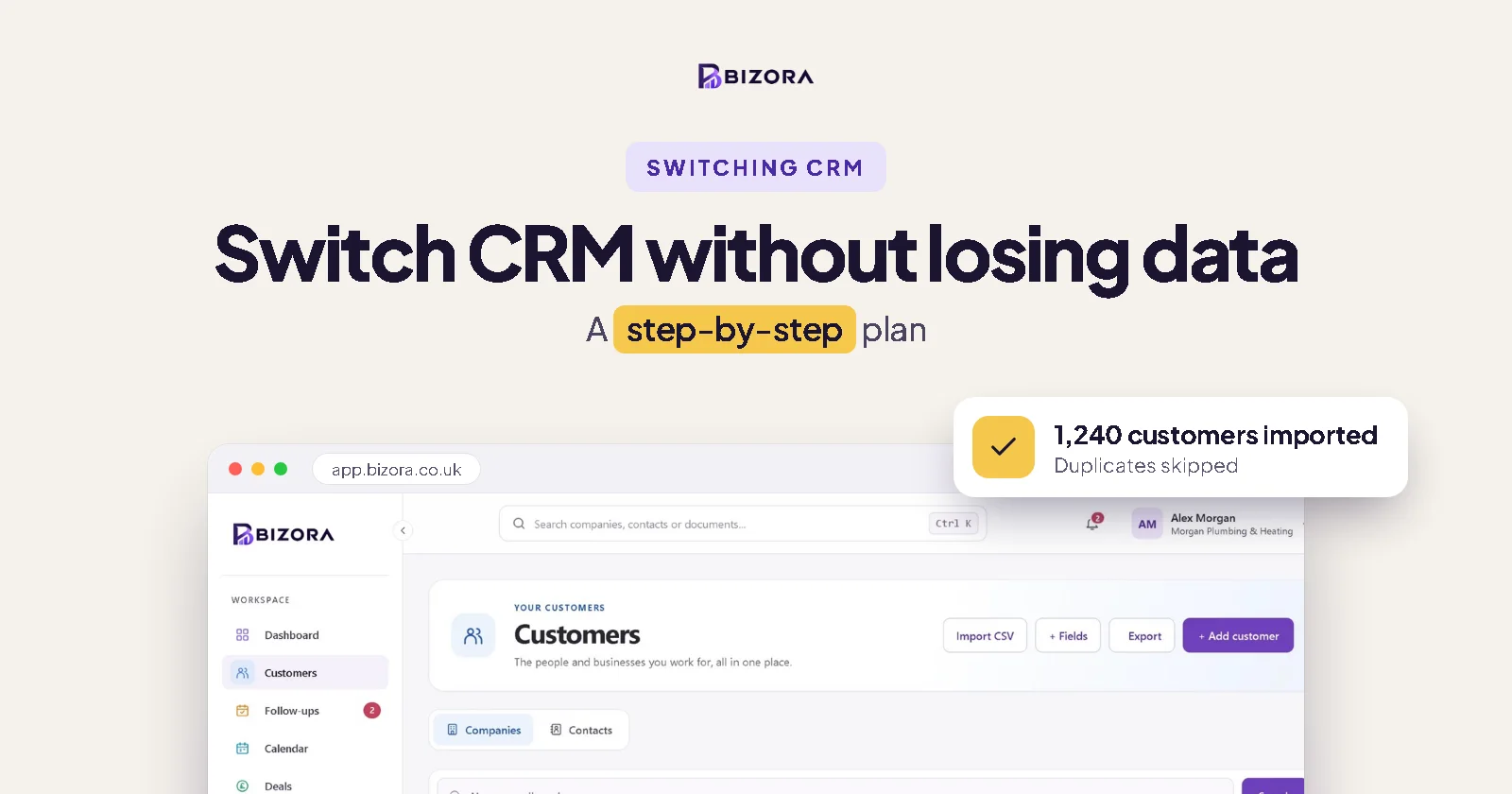
Bizora’s importer is built for exactly this. Upload a CSV from Excel, Google Sheets, Outlook or your old CRM, match the columns and review before anything is saved. Companies are matched by name, people already in Bizora are skipped, and extra columns such as Renewal date can become custom fields. Each file can have up to 5,000 rows. See switching to Bizora for the details, or compare Bizora with HubSpot, Pipedrive and Zoho CRM.
Every Bizora plan has every feature, and you only pay for more room as you grow. Start free and try an import with no card needed.
Common questions
How long does it take to switch CRM?
For most small businesses, a few hours: exporting, cleaning, importing and adding open deals. Bringing the team across takes a week or two of habit.
Will I lose data when I switch CRM?
Not if you keep a full export from your old CRM as a backup, test the import first and check record counts before cancelling.
Can I move deals and notes to a new CRM?
It depends on the new CRM’s importer. Many import companies and contacts only, so open deals and follow-ups are added by hand.
How do I export data from my old CRM?
Look for an Export option on the contacts or companies list, or in settings. Most CRMs export to CSV, which almost any other CRM can import.